

Excel is commonly used for data analysis, financial reporting, scheduling, and project management. However, it can be inconvenient to share or archive spreadsheets. Formatting issues, version compatibility, and accidental modifications can all cause problems. Therefore, many people save Excel files as PDFs because PDFs preserve formatting, maintain consistency, and are easy to share across various devices.
Converting Excel to PDF sounds simple, but doing it well requires attention to formatting, page layout, and file quality. This article will introduce some practical methods for converting Excel to PDF, address common problems you might encounter, and discuss how tools like JOPDF can simplify the process.
Why save Excel as PDF?
Before discussing specific methods, let’s understand why PDF is often the preferred format:
Preserve the original: PDFs ensure that fonts, spacing, and formatting remain unchanged.
Good versatility: PDFs open the same on any device.
Reduce editing risk: Unlike Excel, PDFs are less prone to accidental modification.
Suitable for formal occasions: Ideal for reports, invoices, and formal documents.
However, simply saving an Excel file as a PDF doesn’t always guarantee a clear and readable result.
When converting Excel files to PDF, you often encounter these problems:
* Table columns are too wide, exceeding the page limit
* Content is abruptly split across different pages
* Unnecessary blank areas or margins appear
* Poor text or image quality
* File size is too large
These problems are usually caused by improper page setup or a lack of control options during conversion.
Method 1: Save the Excel file as a PDF using Microsoft Excel
Microsoft Excel has a built-in PDF export function, which is the most direct method.
Steps:
- Open your Excel file.

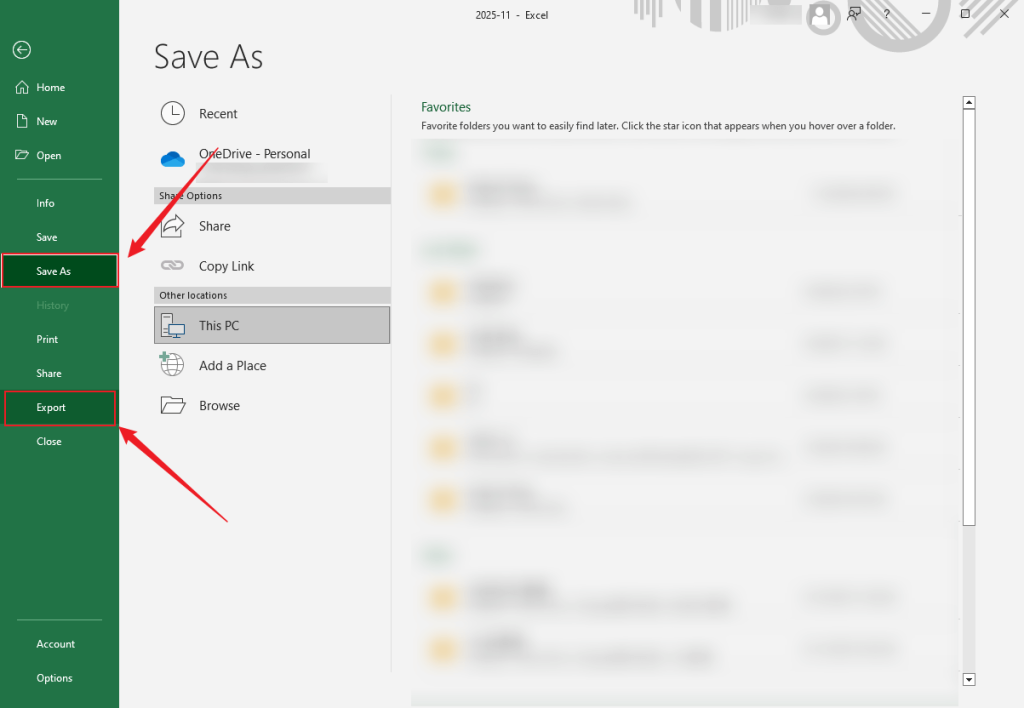
- Select “File” > “Save As”.
- Select PDF as the format.
- Click “Options” to adjust:
Page range
Worksheet selection
Print area
- Save the file.
To make the exported PDF look better:
Set the print area before exporting.
Adjust the scaling using “Page Layout” (e.g., “Fit to one page”).
Finally, preview the file before saving.
This method works fine for simple documents, but it may not be sufficient for large tables or complex layouts.
Method 2: Use the “Print to PDF” function to save the Excel file as a PDF
Another common method is to use the print function.
Steps:
- Open Excel, select “File” > “Print”.
- Select “Microsoft Print to PDF” (or another PDF printer).
- Adjust print settings, such as orientation and scaling.
- Print and save as a PDF file.

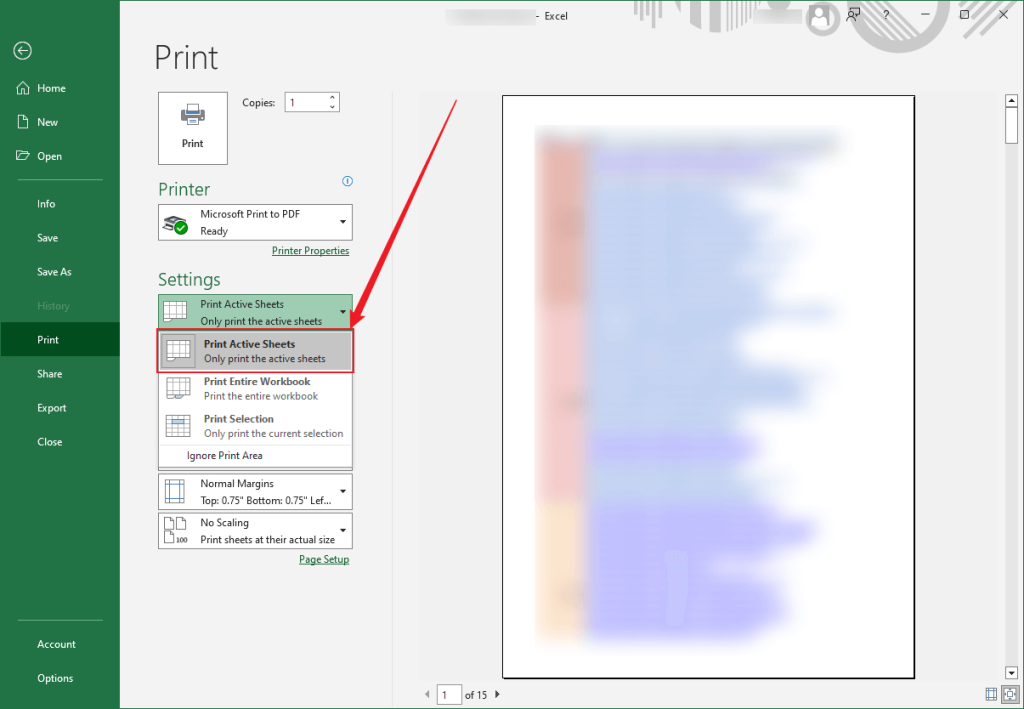
This method gives you slightly more control over the layout, but it mainly relies on Excel’s print settings.
Method 3: Use JOPDF to convert Excel to PDF
If users need a more flexible and consistent conversion experience, especially when dealing with multiple files, JOPDF is a good choice.
What is JOPDF?
JOPDF is a document management tool that supports the conversion, editing, and modification of PDF files. It not only focuses on the conversion itself but also allows users to adjust the final output, which is very useful when formatting is important.
How to save an Excel file as a PDF using JOPDF
1. Open the JOPDF.
2. Click Batch Process and click the Office to PDF option.

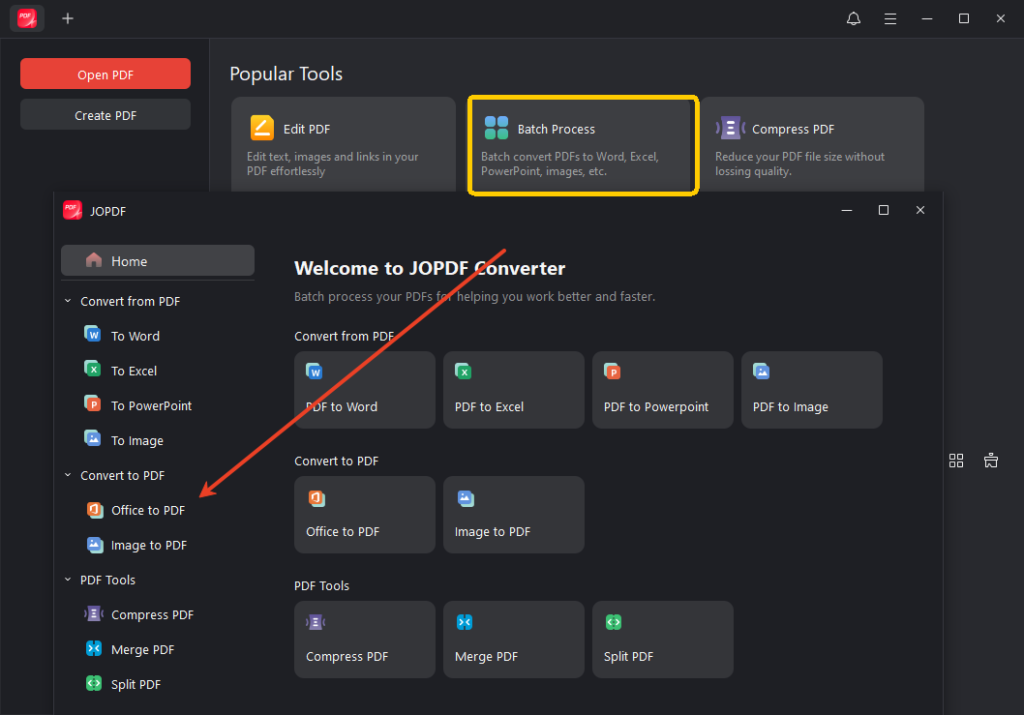
3. Check the page settings, such as orientation and scaling.
4. Convert, and then download the PDF file.
Advantages of JOPDF:
* Preserves table structure and alignment.
* Handles large Excel spreadsheets without problems.
* Maintains consistent display across different devices.
* Allows for editing of the PDF if needed (such as compression or page resizing).
If you frequently need to convert Excel spreadsheets for sharing, archiving, or presentations, JOPDF is a good choice.
Useful Tips for Saving Excel Spreadsheets as PDFs
No matter which method you use, these tips will help you get better PDF files:
* First, organize your spreadsheet.
* Delete unnecessary rows and columns.
* Freeze the header row if necessary.
* Adjust the page layout.
* Choose landscape or portrait orientation based on the content.
* Scale the content appropriately.
* Preview before saving.
* Always check the PDF’s appearance.
* Control the file size.
* If the file is too large to share easily, compress it.
* Use consistent formatting; uniform fonts and spacing make the file easier to read.
Summary
Saving Excel files as PDFs is common, but doing it well goes beyond simply exporting. Understanding layout settings, choosing the right methods, and following best practices are essential to creating clear, professional PDFs that effectively convey your data.
Excel’s built-in functions are sufficient for simple needs, but tools like JOPDF offer greater flexibility and reliability, especially for users who value consistency and efficiency. The key is choosing the method that best suits your workflow and document requirements.