
Excel spreadsheets are widely used for everything from financial reports and invoices to project plans and data dashboards. While Excel files are great for editing and calculations, PDF is often the preferred format for sharing documents because it preserves layouts and can be opened on virtually any device.However, converting Excel to PDF doesn’t always go as smoothly as expected. Many users have experienced situations where columns get cut off, fonts change unexpectedly, charts shift position, or page breaks appear in the wrong places. After spending hours perfecting a spreadsheet, discovering that the exported PDF looks completely different can be frustrating.The good news is that these issues are usually avoidable. By understanding why formatting problems occur and choosing the right conversion method, you can create PDFs that closely match the original Excel workbook.In this guide, we’ll explore the common reasons formatting breaks during conversion, discuss several methods for exporting Excel files to PDF, and explain how JOPDF can help when working with more complex spreadsheets.
Why Does Excel Formatting Change When Converted to PDF?Before looking at solutions, it’s helpful to understand the causes of formatting problems.Page Size LimitationsExcel worksheets are flexible and can extend almost indefinitely in both directions. PDFs, however, use fixed page dimensions. If your worksheet is wider or longer than the selected paper size, Excel may automatically scale or split the content across multiple pages. Incorrect Print SettingsMany formatting issues originate from print configurations rather than the conversion process itself.For example:
Print areas may not be defined correctly.Page orientation may be set incorrectly.Scaling settings may shrink the spreadsheet excessively.
Font Compatibility IssuesCertain fonts may not be embedded during PDF generation. If font substitution occurs, text spacing and cell alignment can change, affecting the overall layout. Merged Cells and Complex LayoutsMerged cells, customized row heights, and elaborate table structures can sometimes behave differently after conversion. Large dashboards with charts and images are particularly susceptible to formatting inconsistencies.Charts and ImagesEmbedded objects such as graphs, logos, and screenshots may shift position or become cropped if they are placed near page boundaries.Understanding these potential issues is the first step toward producing better PDF exports.
Method 1: Use Excel’s Built-in Save As PDF FeatureThe simplest approach is using Excel’s native PDF export function.Steps
Open your Excel workbook.
Click File.Select Save As.Choose the destination folder.Select PDF as the file format.Click Save.
Best PracticesBefore exporting, consider the following adjustments:
Set the print area properly.Choose the correct page orientation.Use the print preview feature.Check page breaks.Verify scaling settings.
For simple worksheets and small reports, Excel’s built-in export often produces satisfactory results.LimitationsThe native PDF function may become less reliable when dealing with:
Large datasetsMultiple worksheetsDashboards containing chartsExtensive use of merged cellsHighly customized layouts
Method 2: Export Through the Print MenuAnother option is generating a PDF through Excel’s print settings.Steps
Open the workbook.
Click File → Print.Choose Microsoft Print to PDF.Adjust page settings.Save the generated PDF.
AdvantagesThe Print menu offers more control over:
MarginsScalingPage orientationPaper size
In some cases, adjusting scaling manually can prevent columns from being cut off.LimitationsThis method still depends on Excel’s rendering engine and may not completely eliminate formatting issues in highly complex spreadsheets.
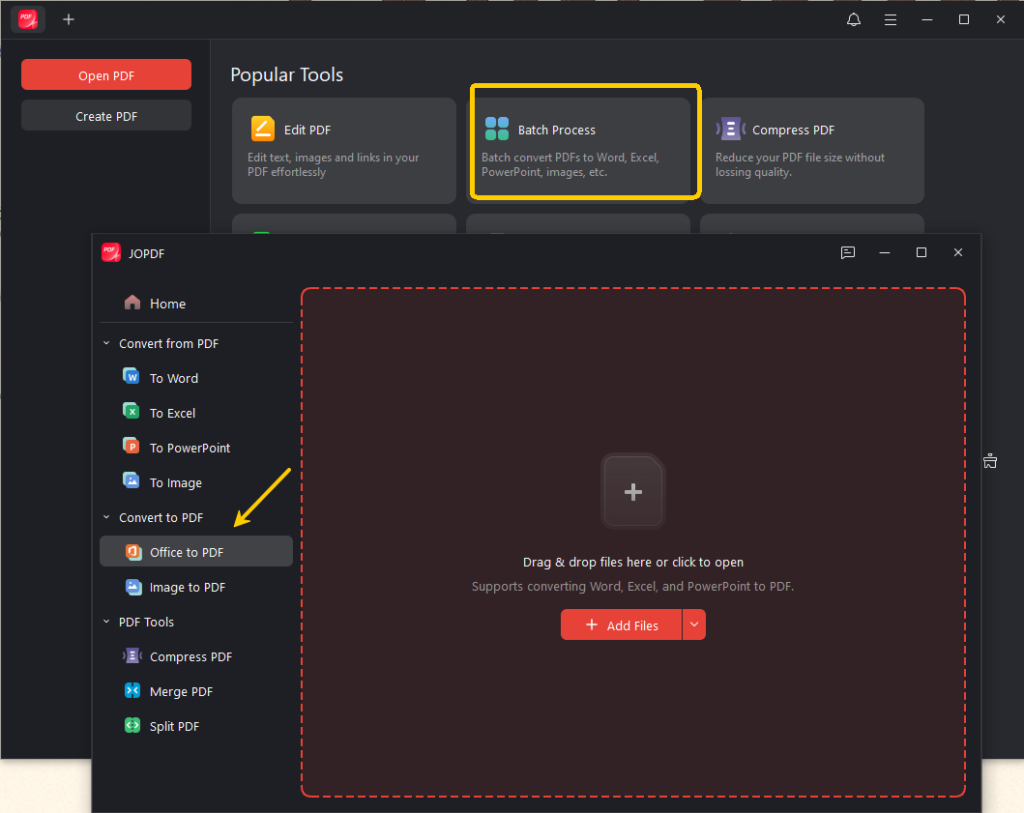
Method 3: Convert Excel to PDF with JOPDFFor spreadsheets that contain complicated formatting, charts, multiple sheets, or extensive data tables, using a dedicated PDF solution can sometimes produce more consistent results.What Is JOPDF?JOPDF is a PDF document management solution that provides a range of tools for working with PDF files, including document conversion, editing, compression, signing, and other PDF-related tasks.Its Excel-to-PDF conversion capability is designed to help maintain the original appearance of spreadsheets during the export process, particularly when dealing with documents that contain detailed formatting elements. How to Convert Excel to PDF Using JOPDFThe process is straightforward.Step 1: Launch JOPDF Open the application and select the “Batch process” function.Step 2: Import Your Excel FileSelect the workbook you want to convert.JOPDF supports common Excel formats, including:
XLSXLSX
Step 3: Configure Conversion SettingsDepending on your document requirements, you can review settings related to:
Page layoutWorksheet handlingOutput preferences
Checking these settings beforehand can help ensure the exported PDF closely matches the original spreadsheet. Step 4: Start the ConversionRun the conversion process and allow the software to generate the PDF file. Step 5: Review the OutputOpen the resulting PDF and verify that:
Tables are aligned properly.Fonts display correctly.Charts and images appear as expected.Page breaks occur in appropriate locations.
When JOPDF May Be UsefulA dedicated PDF solution can be particularly beneficial for:
Financial statementsBusiness reportsSales dashboardsProject tracking sheetsClient presentationsMulti-sheet workbooksDocuments that require precise formatting
While no conversion method can guarantee identical results for every possible spreadsheet design, specialized PDF software often provides greater flexibility when handling more demanding files.